

Using MS Word with Respondus Monitor
Respondus Monitor now supports switching to MS Word during an online exam if enabled by the instructor. This complements Respondus Monitor’s previously announced support for Excel. To find out more, feel free to visit the support guide, Using MS Excel or Word with Respondus Monitor.
- Screen Recording is required since the Word application itself is not locked down.
- This option is not available for the iPad or Chromebook versions of LockDown Browser. Only the Windows and Mac desktop apps for Excel and Word are supported (the web versions are not).
- A practice test that uses MS Word is highly recommended.
How It Works for Teachers
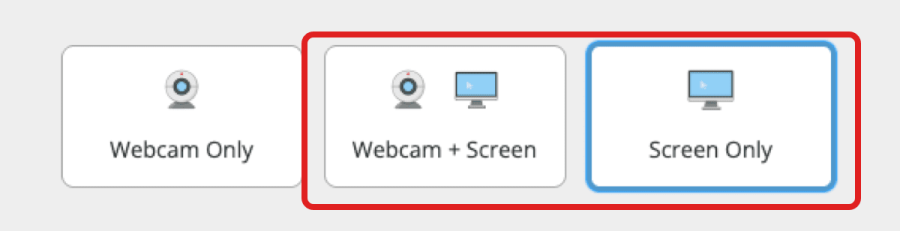
- Select either Webcam + Screen or Screen Only from the Respondus Monitor settings.
- Select Allow switching to another application during the assessment, then choose Microsoft Word.

- If providing students with a pre-populated Word file (e.g., essay prompt, guidelines) upload it to an appropriate location (often a content area for the course) and link to it from the exam. If a pre-populated file isn’t being provided, students are still able to access Word via the LockDown Browser toolbar.
- If students are required to upload their Word document during the exam session, use a question type and/or file upload setting that enables this. Learn more here: Using MS Excel or Word with Respondus Monitor.
- The proctoring results include a “milestone” each time the student switches from LockDown Browser to Word. The screen recording shows what the student did while outside of LockDown Browser.
How It Works for Students
- Within the online exam, use the toolbar icon for MS Word to open the application, or click the link to the Word file, if one is provided.
- Minimize Word to return to the online exam. Select the Word icon from the LockDown Browser toolbar to switch back to it.
- Periodically save your Word document; save it again when your work is complete.
- If applicable, follow the directions from your instructor to upload the saved document.